

From my experience with HitPaw Official, I found it excels at providing straightforward video editing and multimedia tools that are accessible to beginners. The interface is clean and intuitive, making common tasks like trimming videos or recording screens easy without a steep learning curve. However, the free version’s watermark on exports can be limiting for casual users unwilling to upgrade. Overall, if you need simple video editing, screen recording, or video repair without diving into complex software, HitPaw delivers solid, user-friendly functionality.
HitPaw Official - Easy Video Editing and Multimedia Software Tools
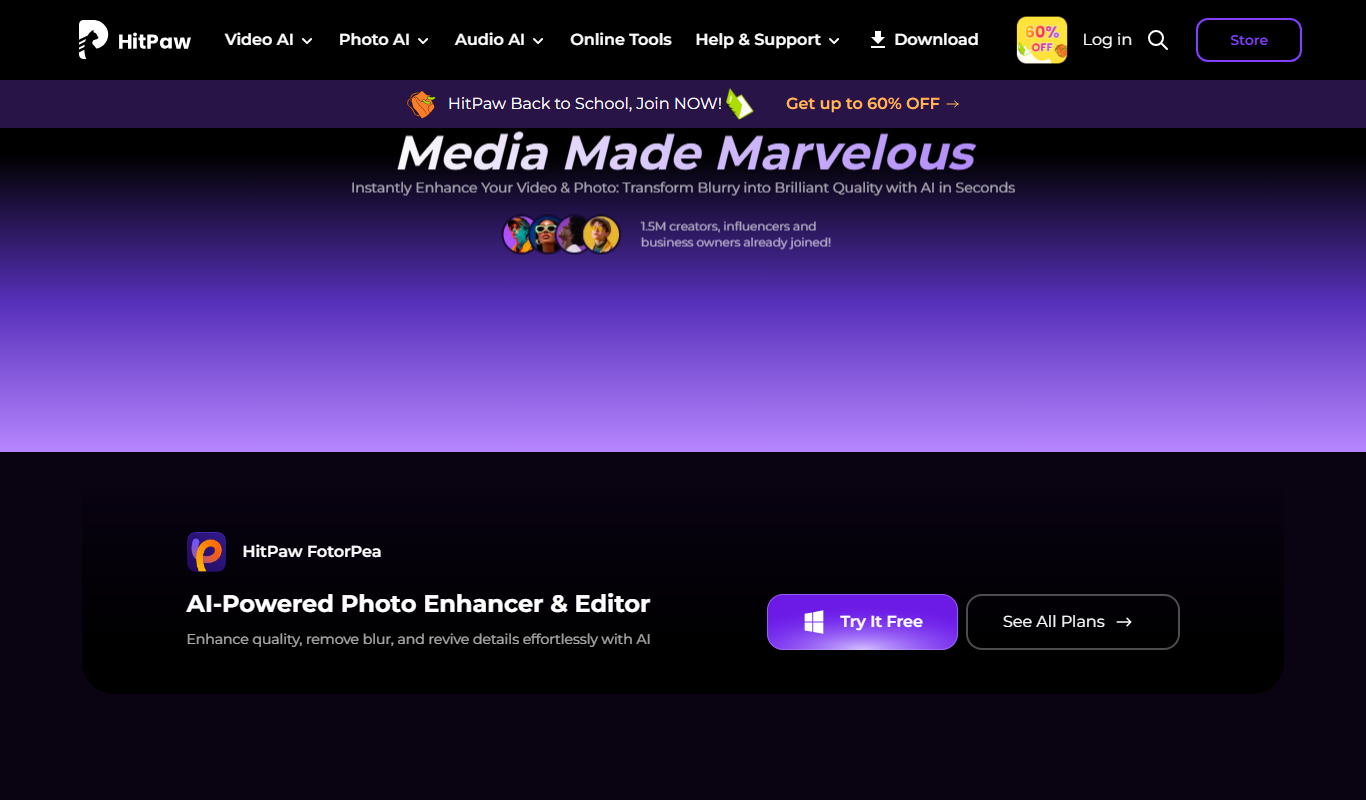
HitPaw Official is a multimedia software suite providing easy video editing, screen recording, video conversion, and video repair tools designed for beginners and casual users.
- Best for
- Video Editing
- Key capability
- User-Friendly Interface

Do you recommend this tool?
What is HitPaw Official?
HitPaw Official is a multimedia software suite designed to simplify video editing, screen recording, video conversion, and repair. It caters to beginners and casual users who want straightforward tools without the complexity of professional-grade software. The platform offers a range of utilities to handle common video and multimedia tasks efficiently.
Key features of HitPaw Official
HitPaw provides easy-to-use video editing tools, screen recording capabilities, video format conversion, video repair functions, and GIF creation. Its intuitive interface and step-by-step guides make it accessible for users with minimal technical background.
User-Friendly Interface
Designed for ease of use with clear navigation and simple controls.
Multiple Video Editing Tools
Trim, crop, rotate, add filters, and insert text or music.
Screen Recorder
Record full screen, specific windows, or custom areas with audio.
Video Converter
Supports a wide range of video formats for conversion.
Video Repair
Restore corrupted or damaged video files quickly.
GIF Maker
Create animated GIFs easily from videos or images.
Pros and cons of HitPaw Official
Pros
- Easy to learn and use for beginners
- Multiple multimedia tools in one suite
- Supports a wide range of video formats
- Affordable pricing with flexible plans
- Quick video repair feature
Cons
- Free version exports videos with watermarks
- Limited advanced editing features compared to professional software
- No mobile app available
Key use cases for HitPaw Official
Video Editing
Create and edit videos with simple tools for trimming, cropping, adding effects, and more.
Screen Recording
Capture screen activity for tutorials, gameplay, or presentations with built-in recording features.
Video Conversion
Convert video files between formats to ensure compatibility with various devices and platforms.
Video Repair
Fix corrupted or damaged video files to recover playable content.
GIF Creation
Create GIFs from videos or images for social media and messaging.
How HitPaw Official works
- 1
Download and Install
Get the HitPaw software from the official website and install it on your Windows or Mac device.
- 2
Choose a Tool
Select the desired function such as video editor, screen recorder, or video converter.
- 3
Import Media
Upload your video or image files into the software to start editing or processing.
- 4
Edit or Convert
Use the available tools to trim, crop, add effects, record screen, or convert formats.
- 5
Export and Save
Save your finished project in the preferred format and quality.
Who is using HitPaw Official
Casual video editors
Content creators and vloggers
Educators creating tutorials
Small business marketers
Social media users
HitPaw Official pricing
Free Trial
$0
Limited features and watermark on exported videos.
Monthly Subscription
$19.95/month
Full access to all features with no watermark.
Annual Subscription
$59.95/year
Discounted full access for one year.
Lifetime License
$99.95 one-time
Permanent access to all features with free updates.
Plans and prices are as published by the vendor and can change. Check the official site before you buy. Open the pricing page (opens in a new tab)
Frequently asked questions about HitPaw Official
Yes, HitPaw is designed with an intuitive interface that makes it easy for beginners to edit videos and use multimedia tools.
No, the free trial version adds watermarks to exported videos. Removing watermarks requires a paid subscription.
HitPaw supports Windows and Mac operating systems, with some tools available via web.
Yes, HitPaw supports editing and exporting videos in 4K resolution.
It depends on your specific needs and how you plan to use the tool. The official website and documentation are the best sources for the latest details.
Some tools offer a free plan or trial with limited features. Availability can vary, so confirm on the official website.
Yes, it can help with that use case depending on how you configure it and what features are available. You’ll get the best results with clear inputs and a defined goal.
Yes, it can help with that use case depending on how you configure it and what features are available. You’ll get the best results with clear inputs and a defined goal.
Sign in to review this tool.
Sign In to ReviewNo reviews yet
Be the first to share how this tool worked for you.
Ask about pricing, limits, or how it compares — or answer someone else.
Sign In to AskNo questions yet
Have a question about using or paying for this tool? Be the first to ask.
Featured on TiorAI



More AI Audio Enhancer tools
Other tools in the same category, for when this one is not quite the fit.

Free
Wynk Music
Wynk Music is an Indian music streaming app by Airtel Digital Limited offering millions of songs, podcasts, offline downloads, and live radio with free and premium plans.
Free
JioSaavn
JioSaavn is an Indian music streaming service providing millions of songs, podcasts, AI-personalized playlists, and offline listening on web and mobile platforms.

Free
Gaana
Gaana is an Indian music streaming platform offering millions of songs, podcasts, and radio stations with free and subscription plans including offline listening and personalized recommendations.
Freemium
Shoutcast
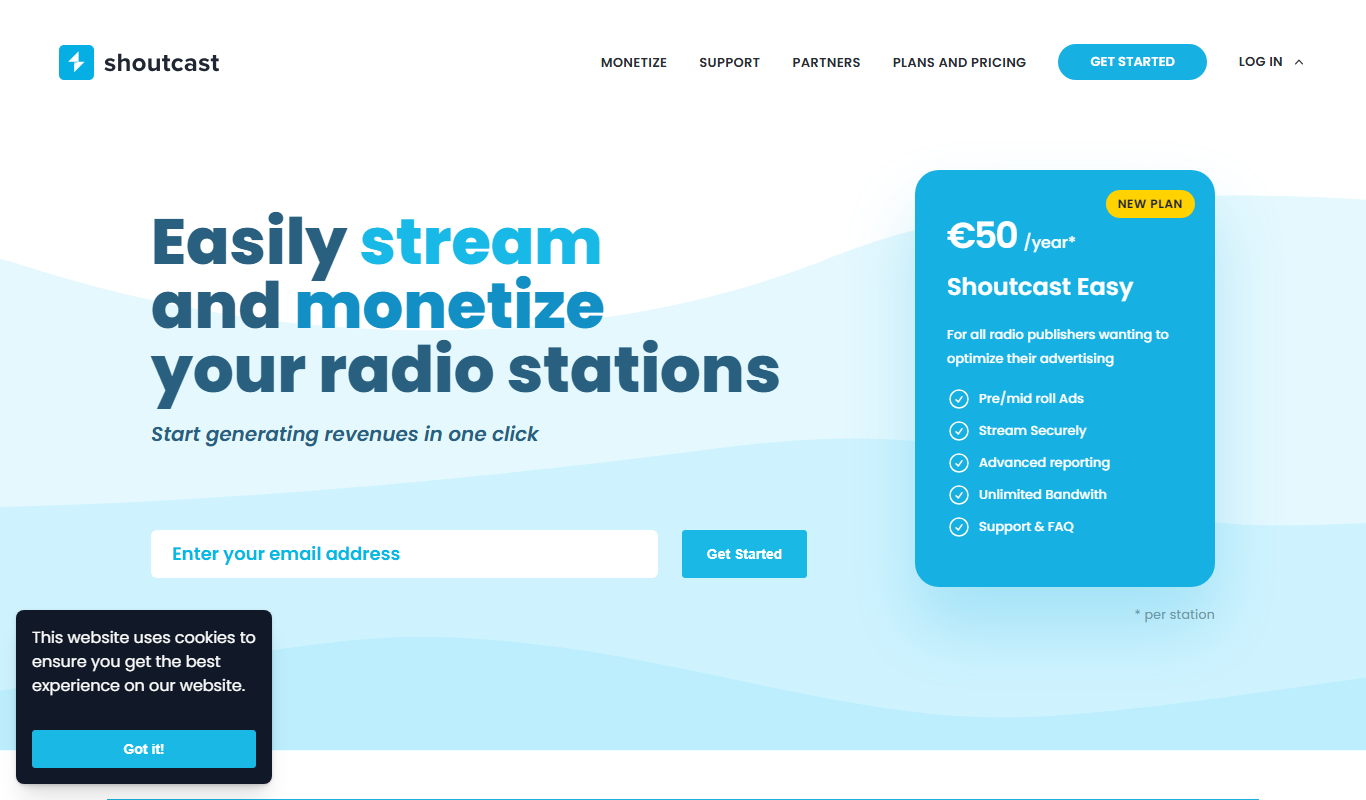
Shoutcast is an internet radio platform that enables users to create and broadcast live audio streams globally, with tools for station customization, analytics, and monetization.

Free
Pzizz
Pzizz is an app that combines AI-generated music and voice guidance to help users fall asleep quickly, take effective naps, and improve overall sleep quality.
Freemium
Petralex Hearing Aid
Petralex Hearing Aid is a mobile app that amplifies sounds and customizes hearing settings based on a hearing test, providing personalized assistance for mild to moderate hearing loss.

Free
Mimi Hearing Test
Mimi Hearing Test is a free mobile app that provides an accurate, scientifically validated hearing assessment and creates personalized hearing profiles to optimize audio playback based on individual hearing ability.

Free Trial
Audible
Audible is a subscription-based platform offering a vast library of audiobooks, podcasts, and spoken-word content with features like offline listening and Whispersync for Voice.