

From my experience with AutoCut, I found it excels at automating the tedious task of cutting silences and unwanted parts from videos, which significantly speeds up the editing workflow. The web-based platform is intuitive and requires no technical expertise, making it accessible for content creators and podcasters alike. However, the free plan limits video length and language options are currently restricted to English and French, which may not suit all users. Overall, if you need a straightforward AI tool to quickly trim and polish videos for social media or podcasts, AutoCut delivers reliable and efficient results.
AutoCut AI Video Editor for Quick and Precise Video Cutting Online
AutoCut is an AI-driven online video editor that automatically detects and removes silences and unwanted segments from videos, streamlining the editing process for content creators.
- Best for
- Automatic Video Editing
- Key capability
- Automatic Silence Detection
Your actions

Do you recommend this tool?
What is AutoCut?
AutoCut is an AI-powered online video editor designed to automatically cut and trim videos by detecting silences and unwanted segments. It helps content creators, podcasters, and marketers streamline their video editing workflow by removing tedious manual cutting tasks. The tool is accessible via a web platform and supports multiple languages including English and French.
Key features of AutoCut
AutoCut offers automatic silence detection and removal, easy video trimming, subtitle generation, and export options optimized for social media platforms. Its AI algorithms analyze audio to identify pauses and filler content, enabling quick and precise video cuts.
Automatic Silence Detection
AI identifies silent parts in videos to remove unnecessary pauses.
Subtitle Generation
Generate subtitles automatically to improve accessibility and engagement.
Multi-language Support
Supports English and French for audio analysis and subtitles.
Easy Export Options
Export videos optimized for various social media platforms.
Pros and cons of AutoCut
Pros
- Saves significant time by automating video cutting
- User-friendly web interface with no software installation
- Supports subtitle generation for accessibility
Cons
- Limited video length on free plan
- Currently supports only English and French languages
Key use cases for AutoCut
Automatic Video Editing
Automatically cut and edit videos to remove silences and unwanted parts, saving time on manual editing.
Content Creation for Social Media
Create polished video clips quickly for platforms like YouTube, Instagram, and TikTok using AI-powered editing.
Podcast Video Editing
Edit video podcasts by removing pauses and filler words to improve viewer engagement.
Video Summarization
Generate concise video summaries by trimming unnecessary content automatically.
How AutoCut works
- 1
Upload Video
Start by uploading your video file to the AutoCut web platform.
- 2
AI Analysis
The AI analyzes the audio track to detect silences and segments to cut.
- 3
Review and Adjust
Preview the automatically generated cuts and make manual adjustments if needed.
- 4
Export Edited Video
Export the final trimmed video in your preferred format for sharing or publishing.
Who is using AutoCut
Content creators
Podcasters
Social media marketers
Video editors looking for automation
Small businesses producing video content
AutoCut pricing
Free
$0/month
Basic access with limited video length and export options.
Pro
€15/month
Extended video length, priority processing, and advanced features.
Plans and prices are as published by the vendor and can change. Check the official site before you buy. Open the pricing page (opens in a new tab)
Frequently asked questions about AutoCut
AutoCut supports common video formats such as MP4, MOV, and AVI for upload and export.
Yes, after the AI processes your video, you can review and manually fine-tune the cuts.
Yes, the free plan has a maximum video length limit, which is extended in the Pro plan.
It depends on your specific needs and how you plan to use the tool. The official website and documentation are the best sources for the latest details.
Yes, it can help with that use case depending on how you configure it and what features are available. You’ll get the best results with clear inputs and a defined goal.
Some tools offer a free plan or trial with limited features. Availability can vary, so confirm on the official website.
Sign in to review this tool.
Sign In to ReviewNo reviews yet
Be the first to share how this tool worked for you.
Ask about pricing, limits, or how it compares — or answer someone else.
Sign In to AskNo questions yet
Have a question about using or paying for this tool? Be the first to ask.
Featured on TiorAI



More AI Ai Tools tools
Other tools in the same category, for when this one is not quite the fit.

Free
Pogo Travel
Pogo Travel is an AI-driven platform that generates personalized travel itineraries based on your preferences, travel dates, and interests, offering collaborative planning and offline access.
Freemium
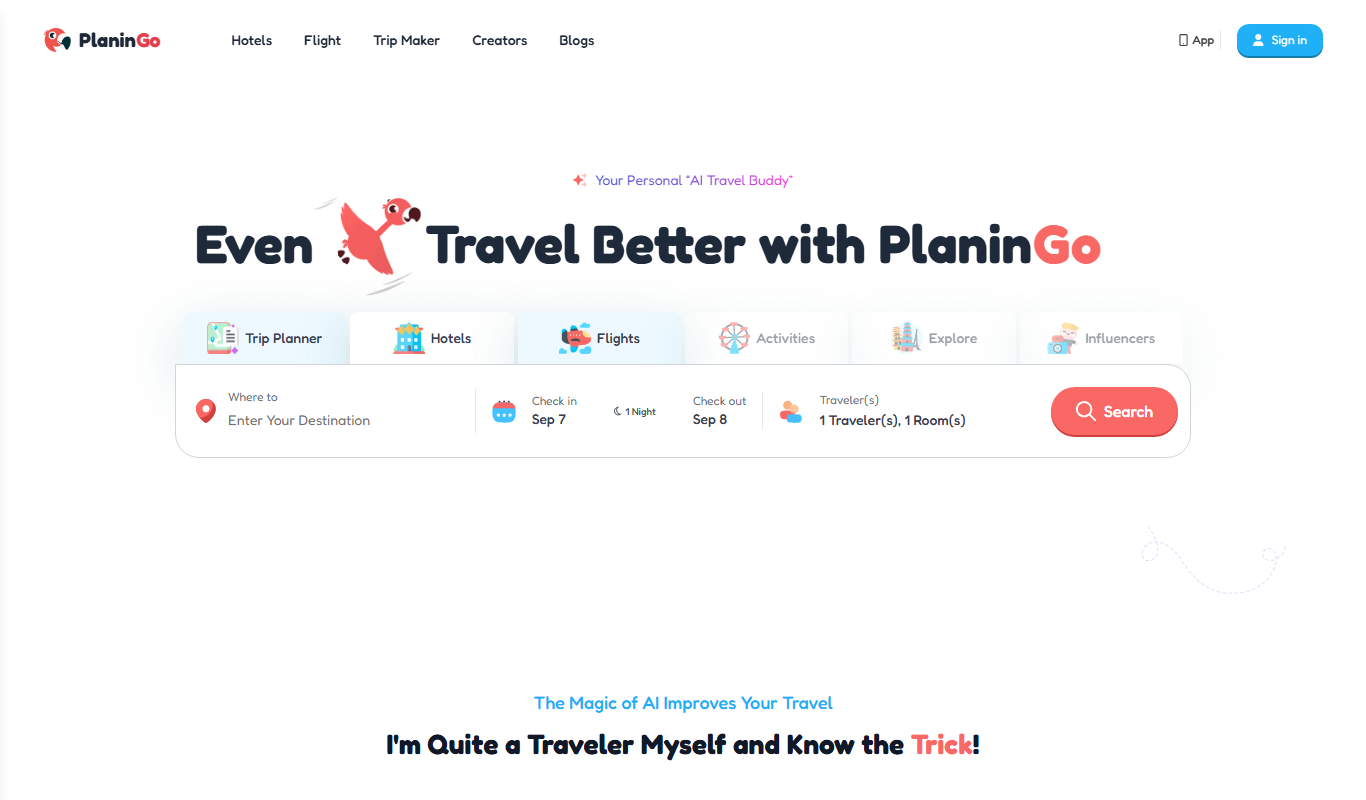
PlaninGo
PlaninGo is an AI travel planning tool that generates personalized trip itineraries and guides based on your preferences, helping you plan efficient and enjoyable trips.

Free
Travelwiz
Travelwiz is an AI-powered travel planning tool that creates personalized trip itineraries and offers tailored travel recommendations based on user preferences.

Free
Momo
Momo is an AI-powered assistant that automates workflows, manages tasks, and enhances team collaboration by integrating with popular productivity tools.

Free
Nextrip
Nextrip AI is an online travel planning tool that uses artificial intelligence to generate personalized trip itineraries based on your preferences, travel dates, and destinations.

Freemium
TravelBot AI Travel Assistant
TravelBot AI Travel Assistant is a web-based platform that uses artificial intelligence to help users create personalized travel itineraries, book flights and hotels, and receive tailored travel recommendations based on preferences and budget.
Freemium
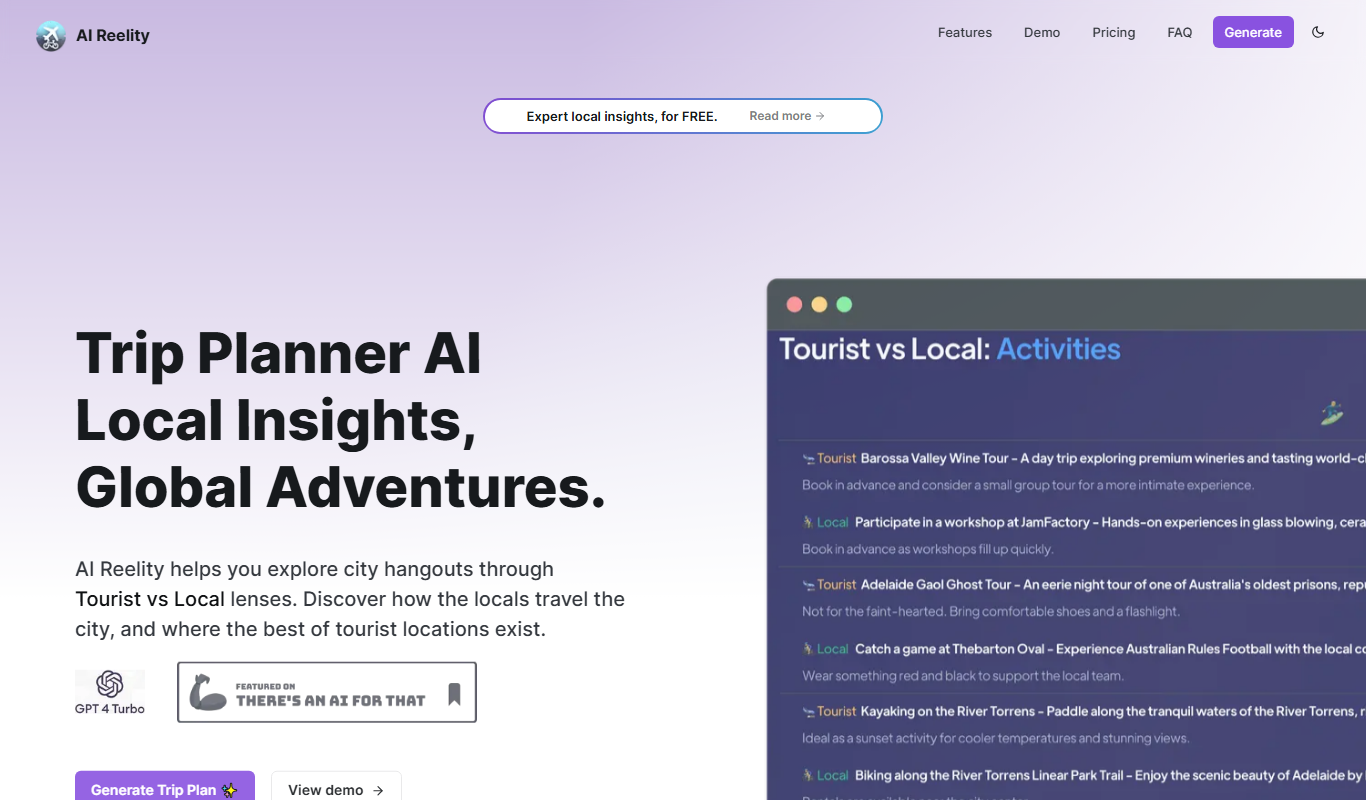
AIreelity
AIreelity is an AI-driven video creation platform that transforms text scripts into engaging marketing videos with customizable templates and AI voiceovers.

Free
AIJOURNEY
AIJOURNEY is an AI-driven career development tool that provides personalized career path recommendations, identifies skill gaps, and offers curated learning resources to help users advance professionally.