

Recuva Data Recovery Software for Windows - File Restore Tool
Recuva is a Windows-based data recovery software that helps users recover deleted or lost files from various storage devices using quick or deep scans, and also offers secure file deletion.
- Best for
- Accidental File Deletion Recovery
- Key capability
- Quick and Deep Scan Modes
Save Recuva, follow its updates and vote on it — everything stays in your account.
Sign in or create a free account
What is Recuva?
Recuva is a Windows-based data recovery software developed by Piriform Ltd. It helps users recover deleted files from various storage devices including hard drives, USB drives, memory cards, and more. The tool supports recovery from accidental deletion, formatted drives, and corrupted disks. It also offers secure file deletion to permanently erase sensitive data.
Key features of Recuva
Recuva offers quick and deep scanning modes, supports a wide range of file types, provides a simple user interface, and includes options for secure file deletion. It is suitable for both casual users and professionals needing reliable file recovery.
Quick and Deep Scan Modes
Offers fast scanning for recently deleted files and deep scanning for more thorough recovery.
Wide File Type Support
Supports recovery of various file types including photos, documents, videos, emails, and more.
User-Friendly Interface
Simple wizard-driven interface guides users through the recovery process.
Secure Overwrite
Includes a feature to securely overwrite files to prevent future recovery.
Portable Version Available
Offers a portable version that can run without installation, useful for recovery on different machines.
Pros and cons of Recuva
Pros
- Easy to use with a simple interface
- Effective at recovering a wide range of file types
- Offers both quick and deep scan options
- Free version available with useful features
- Portable version for flexible use
Cons
- Only available for Windows
- Recovery success depends on data not being overwritten
- Limited features in free version
- No native support for macOS or Linux
Key use cases for Recuva
Accidental File Deletion Recovery
Restore files accidentally deleted from hard drives, USB sticks, memory cards, and other storage devices.
Formatted Drive Recovery
Recover files lost due to formatting of drives or partitions.
Corrupted Disk Recovery
Retrieve data from corrupted or damaged disks where files are inaccessible.
Secure File Deletion
Permanently delete files to prevent recovery using secure overwrite methods.
Deep Scan for Lost Files
Perform deep scans to find files that standard scans cannot detect.
How Recuva works
- 1
Download and Install
Download Recuva from the official website and install it on your Windows PC.
- 2
Launch and Select File Type
Open Recuva and choose the type of files you want to recover (e.g., pictures, documents).
- 3
Choose File Location
Specify the location where the files were lost, such as a specific folder or drive.
- 4
Scan for Deleted Files
Run a quick scan or a deep scan to locate recoverable files.
- 5
Preview and Recover
Preview found files and select which ones to restore to a safe location.
Who is using Recuva
Recuva pricing
Free
$0
Basic file recovery with limited features and no premium support.
Professional
$24.95 (one-time)
Includes advanced file recovery, virtual hard drive support, automatic updates, and premium support.
Plans and prices are as published by the vendor and can change. Check the official site before you buy. Open the pricing page (opens in a new tab)
Frequently asked questions about Recuva
Yes, Recuva can recover files from drives that have been formatted, provided the data has not been overwritten.
No, Recuva is only available for Windows operating systems.
Yes, Recuva supports recovery from USB drives, memory cards, and other external storage devices.
Yes, it includes a secure overwrite feature to permanently delete files.
It depends on your specific needs and how you plan to use the tool. The official website and documentation are the best sources for the latest details.
It depends on your specific needs and how you plan to use the tool. The official website and documentation are the best sources for the latest details.
It depends on your specific needs and how you plan to use the tool. The official website and documentation are the best sources for the latest details.
Conclusion
Recovery starts with a choice of file type, such as pictures or documents, and the location where the files were lost. A quick scan looks for recently deleted files, while a deep scan offers more thorough recovery. Found files can be previewed before the selected ones are restored to a safe location. Supported sources include hard drives, USB drives and memory cards, even after a drive has been formatted.
Recovery success depends on the data not having been overwritten. The same software also works in reverse, securely overwriting files to prevent future recovery. A portable version runs without installation.
It runs only on Windows. Alongside the free version, a Professional edition costs $24.95 as a one-time purchase and adds virtual hard drive support, automatic updates and premium support.
Sources
Sign in to review this tool.
Sign In to ReviewNo reviews yet
Be the first to share how this tool worked for you.
Ask about pricing, limits, or how it compares — or answer someone else.
Sign In to AskNo questions yet
Have a question about using or paying for this tool? Be the first to ask.
Featured on TiorAI



More Business Management tools
Other tools in the same category, for when this one is not quite the fit.

Paddle Checkout
Paddle Checkout is a payment and subscription management platform designed for SaaS and digital product businesses, providing global payment processing, tax compliance, and customer analytics.
ClassIn
ClassIn is a virtual classroom platform where exams run as a feature through In-Class Test and Test Bank.

Pollfish
Pollfish is an online survey platform that enables businesses to collect targeted consumer insights quickly through mobile sampling and real-time data analytics.

AutoRFP.ai
AutoRFP.ai is an AI-powered platform that automates RFP response creation, enabling sales teams to quickly generate tailored proposals and manage content efficiently.

WriteMyPRD
WriteMyPRD is an AI-driven tool that automates the creation of product requirement documents, helping teams save time and improve documentation quality.
Fluxx Grant Management
Fluxx Grant Management is a cloud-based platform that helps foundations and nonprofits manage the entire grant lifecycle, including application processing, collaboration, compliance tracking, and reporting.
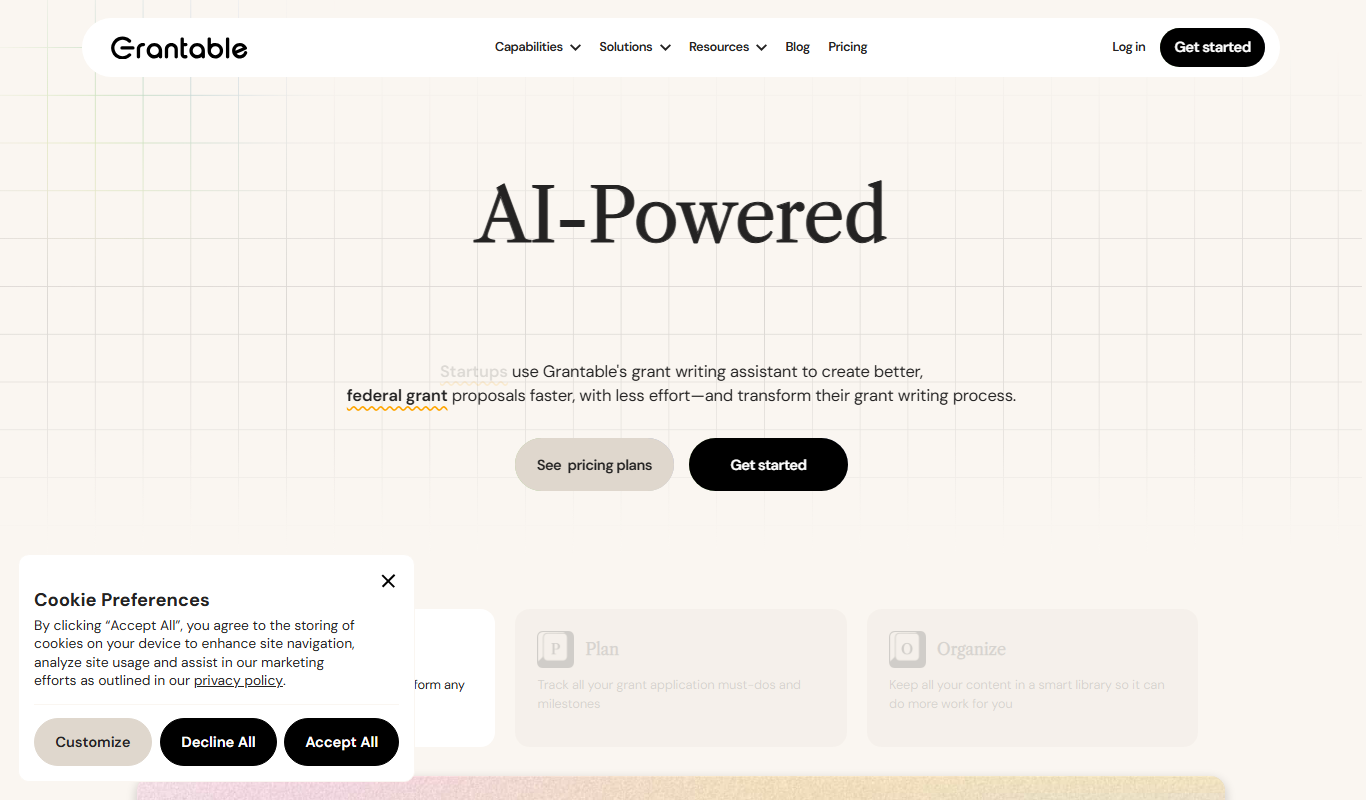
Grantable
Grantable is AI grant writing software for nonprofits and grant writers that finds aligned funders, drafts proposals in your voice and manages the full grant lifecycle.

Jell
Jell is a team collaboration and project management tool that helps teams run daily standups, track OKRs, and improve alignment, especially for remote and agile teams.