

From my experience with NVDA Screen Reader, I found it excels at providing a robust, free solution for visually impaired users to access Windows computers. Its open-source nature and active community make it highly adaptable and trustworthy. After spending time with NVDA, I can say it’s particularly well-suited for users who need reliable screen reading without costly licenses, including students, professionals, and developers focused on accessibility. However, there’s a trade-off: it is limited to Windows and voice quality depends on external synthesizers. Overall, if you need a cost-free, effective screen reader, NVDA delivers solid results.
NVDA Screen Reader - Free Open Source Accessibility Software for Windows
NVDA is a free, open-source screen reader for Windows that helps visually impaired users access digital content through speech and braille output.
- Best for
- Assistive Technology for Visually Impaired
- Key capability
- Free and Open Source

Do you recommend this tool?
What is NVDA Screen Reader?
NVDA (NonVisual Desktop Access) is a free, open-source screen reader for Microsoft Windows. It enables blind and vision-impaired users to access and interact with the Windows operating system and many third-party applications through synthesized speech and braille output. NVDA supports multiple languages and is developed by NV Access, a non-profit organization dedicated to making technology accessible.
Key features of NVDA Screen Reader
NVDA offers real-time text-to-speech feedback, supports braille displays, works with popular applications like web browsers and office suites, and is highly customizable with add-ons. It is lightweight, regularly updated, and designed to be easy to install and use without cost.
Free and Open Source
NVDA is completely free to use and its source code is publicly available for transparency and community contributions.
Multi-language Support
Supports a wide range of languages and voices to accommodate global users.
Braille Display Compatibility
Works with many braille displays to provide tactile reading options.
Customizable Keyboard Shortcuts
Allows users to tailor navigation commands for efficient screen reading.
Regular Updates and Community Support
NV Access maintains frequent updates and an active user and developer community.
Pros and cons of NVDA Screen Reader
Pros
- Completely free and open source
- Supports multiple languages and braille devices
- Lightweight and fast performance
- Strong community and regular updates
- Highly customizable for different user needs
Cons
- Limited to Windows platform
- Voice quality depends on installed speech synthesizers
- May require learning curve for advanced features
Key use cases for NVDA Screen Reader
Assistive Technology for Visually Impaired
NVDA provides speech feedback to help blind and low-vision users interact with Windows applications and content.
Screen Reading for Accessibility Testing
Developers and testers use NVDA to verify the accessibility of software and websites.
Educational Support
Students with visual impairments use NVDA to access digital learning materials and participate in classroom activities.
Workplace Accessibility
Employees with vision disabilities rely on NVDA to perform daily computer tasks and communicate effectively.
How NVDA Screen Reader works
-
1
Download and Install
Users download NVDA from the official website and install it on their Windows PC.
-
2
Configure Settings
Users customize speech rate, voice, braille display, and keyboard shortcuts to suit their preferences.
-
3
Use Keyboard Navigation
NVDA reads screen content aloud as users navigate with keyboard commands.
-
4
Extend Functionality
Users can install add-ons to enhance NVDA’s capabilities for specific applications or workflows.
Who is using NVDA Screen Reader
Blind and visually impaired users
Accessibility testers and developers
Educational institutions supporting disabled students
Employers providing workplace accommodations
Non-profit organizations focused on accessibility
NVDA Screen Reader pricing
Free
$0
Full access to all NVDA features without any cost.
Plans and prices are as published by the vendor and can change. Check the official site before you buy. Open the pricing page (opens in a new tab)
Frequently asked questions about NVDA Screen Reader
NVDA supports Windows 7 and later versions, including Windows 10 and 11.
Yes, NVDA supports many popular braille displays for tactile reading.
No, NVDA works offline once installed.
Yes, NVDA is designed to be user-friendly with extensive documentation and tutorials.
This tool is designed to help users accomplish its core tasks more efficiently. It is typically used by individuals or teams looking to improve productivity and workflow.
Some tools offer a free plan or trial with limited features. Availability can vary, so confirm on the official website.
Yes, it can help with that use case depending on how you configure it and what features are available. You’ll get the best results with clear inputs and a defined goal.
It depends on your specific needs and how you plan to use the tool. The official website and documentation are the best sources for the latest details.
Sign in to review this tool.
Sign In to ReviewNo reviews yet
Be the first to share how this tool worked for you.
Ask about pricing, limits, or how it compares — or answer someone else.
Sign In to AskNo questions yet
Have a question about using or paying for this tool? Be the first to ask.
Featured on TiorAI



More AI Accessibility Tools tools
Other tools in the same category, for when this one is not quite the fit.

Free
BeeLine Reader
BeeLine Reader is an accessibility tool that applies color gradients to digital text to improve reading speed, focus, and comprehension, especially benefiting users with dyslexia and visual impairments.
Free
Alt Text AI Generator
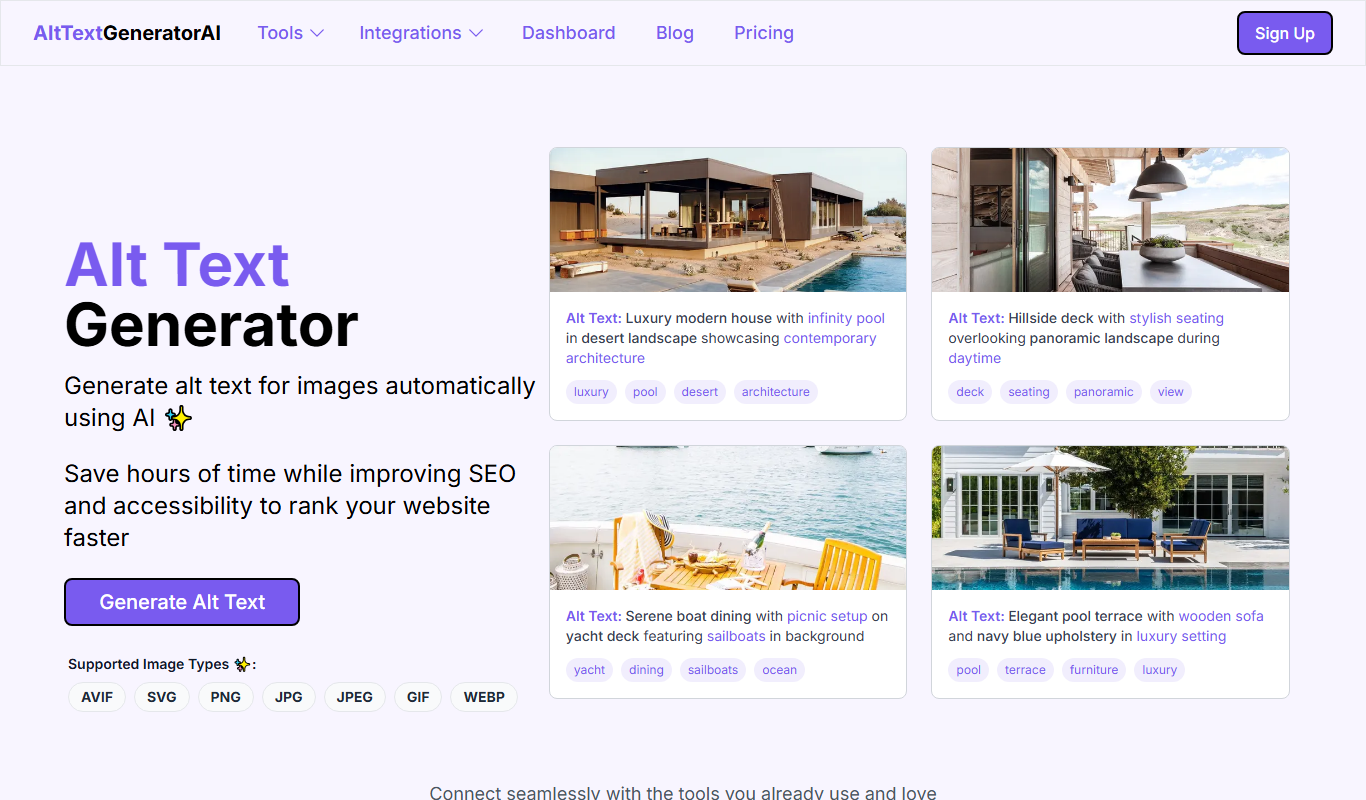
Alt Text AI Generator is a web tool that uses AI to create descriptive alternative text for images, helping improve website accessibility and SEO.

Free
GPT Reader: A Free AI Text-to-Speech
GPT Reader is a free online AI text-to-speech tool that converts English text into natural-sounding speech with multiple voice options and adjustable speed, requiring no signup.

Free
free text Into Speech
TTS4Free is a free online text-to-speech tool that converts typed text into natural-sounding speech audio in multiple languages without registration.

Free
Soundify
Soundify is an online AI-powered text to speech tool that converts written text into natural, human-like audio with multiple voice options and easy downloads.
Free
Say My Name!
Say My Name! is a free web app that helps users record and share audio clips of their name pronunciation to reduce mispronunciations.

Free
AI Describe Picture
AI Describe Picture is a free web tool that uses AI to generate descriptive captions for images, enhancing accessibility and SEO by providing automatic alt text.

Free
Marlee
Marlee is an AI-powered voice assistant app that enables hands-free task management and reminders, focusing on accessibility and productivity for iOS and Android users.